

Online store and Shopify
Connect your Shopify store
Link a Shopify store to your team to list boards there and bring its orders into Surfbase.
On this page 5 sections
Before you start
Connect the store
-
Open the Shopify settings
In Surfbase, go to Settings, then Integrations, and choose Manage next to Shopify.
-
Install Surfbase from the App Store
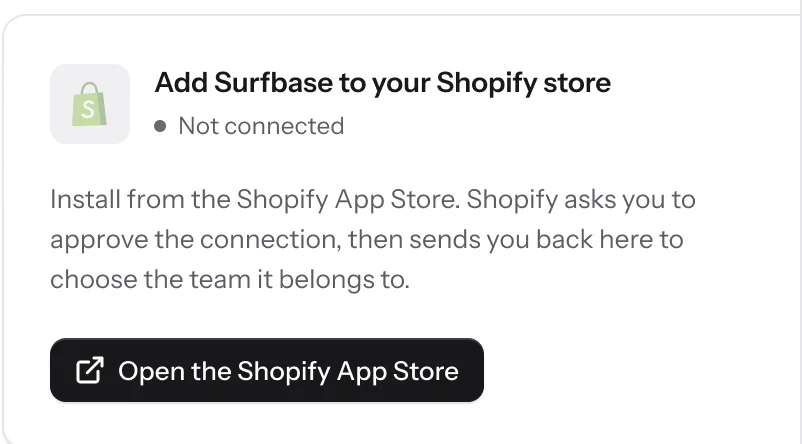
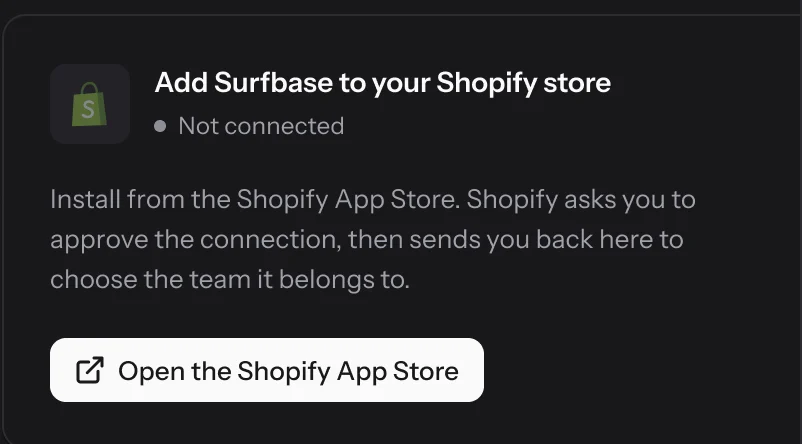
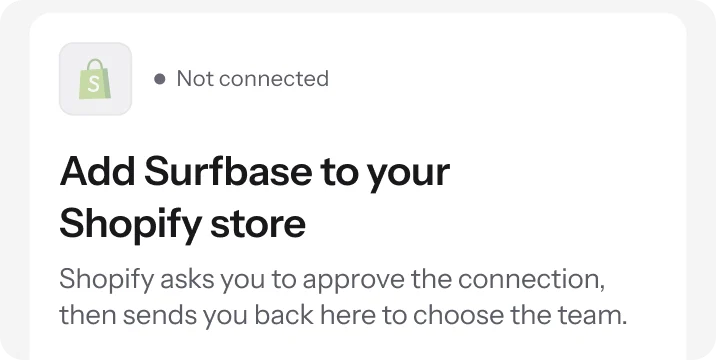
Select Open the Shopify App Store. The install starts on Shopify, in the store you are signed in to.
-
Approve the connection in Shopify
Shopify lists what Surfbase can read and change in your store. Approve it, and Shopify sends you back to Surfbase.
-
Confirm this team
Check that the team shown is the one the store belongs to, then select Link store. Wrong team? Switch teams first, then come back.

Check your store details
Once the store is linked, Surfbase reads a few facts from it. Check they match your team before you list anything.
| Detail | From your store | What to check |
|---|---|---|
| Currency | AUD | Matches your team |
| Prices include tax | Yes | Same as your tax settings |
| Stock location | Gold Coast workshop | Only if your store has several |
| Permissions | All granted | Re-authorise if one is missing |
List a board
Stock boards
Open the board and turn on List on Shopify. It sells at the asking price, and sells out on Shopify the moment it sells anywhere else.
Designs
On the design page, choose List on Shopify. It arrives in Shopify as a draft: set its prices and activate it there.
Orders
Orders placed in your Shopify store land in Orders, with the buyer’s note kept on the order.
If something goes wrong
Surfbase is missing a permission on your store, so nothing can be listed. Select Re-authorise and approve it in Shopify.
Shopify stopped accepting our access, usually because the app was uninstalled. Nothing is lost: select Reconnect and syncing picks up where it left off.
Was this guide helpful?
Thanks for telling us.
Sorry it missed. Tell us what you were looking for and a person will write back.