Production tracking
Every board, every stage.
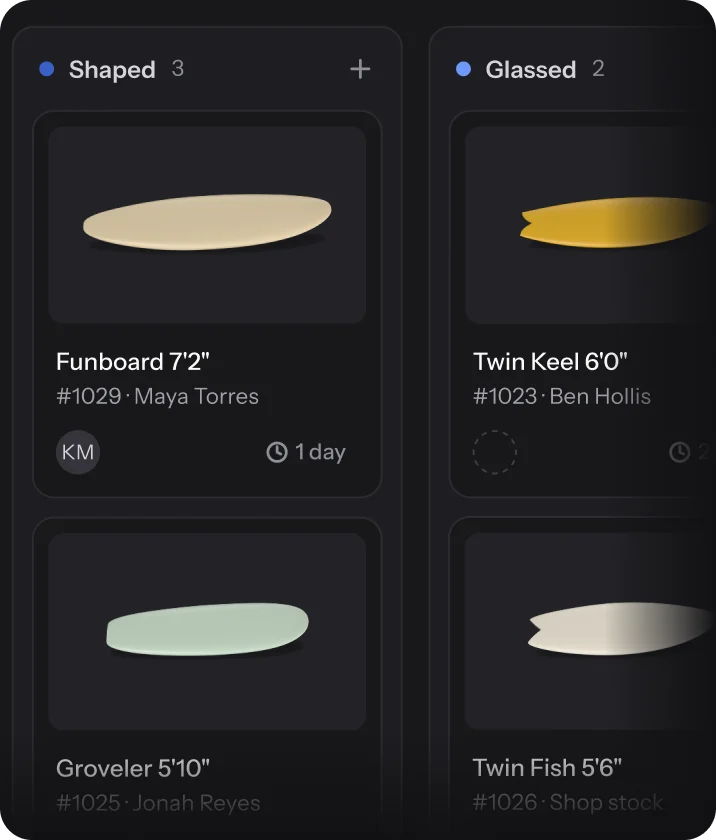
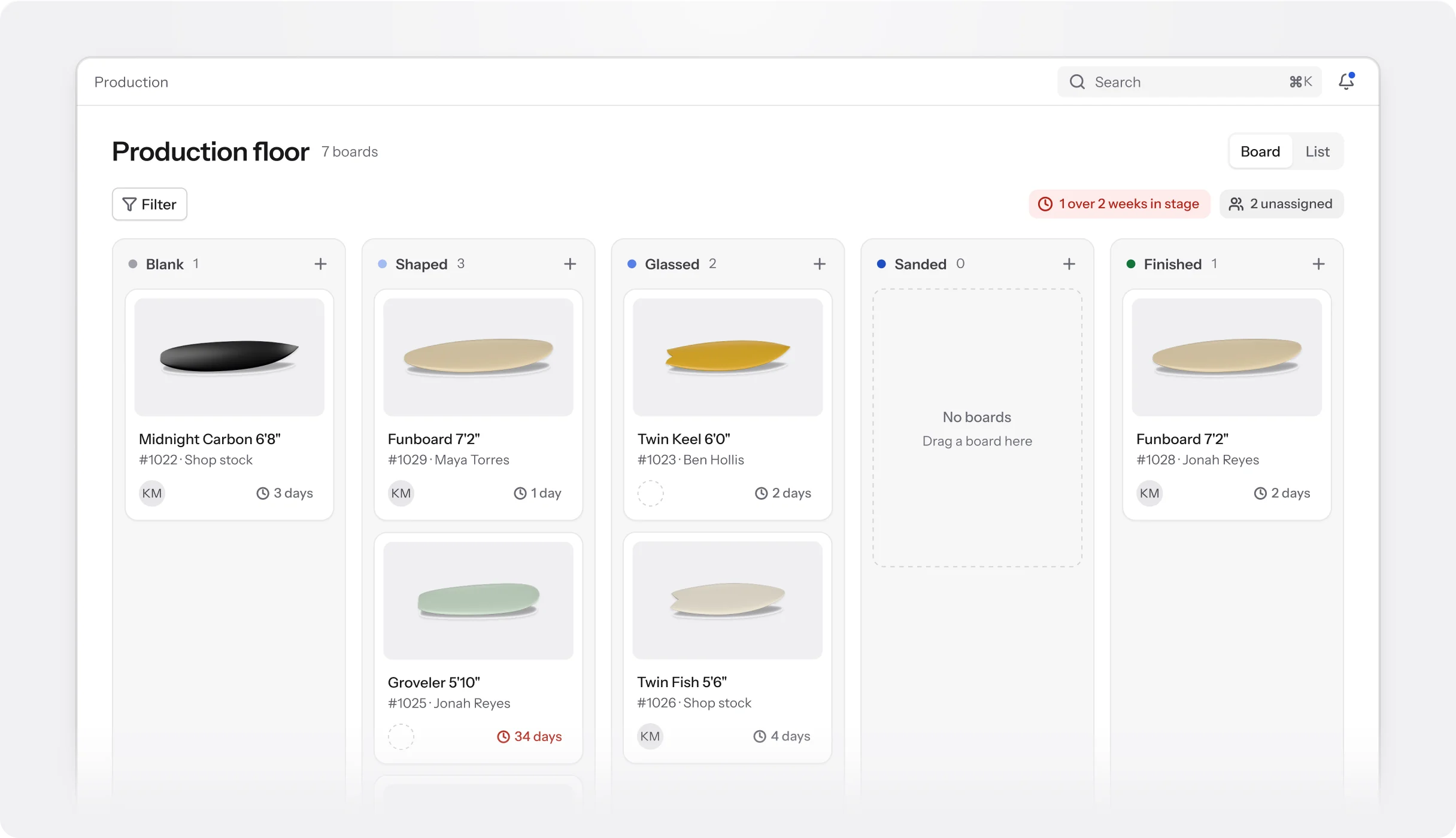
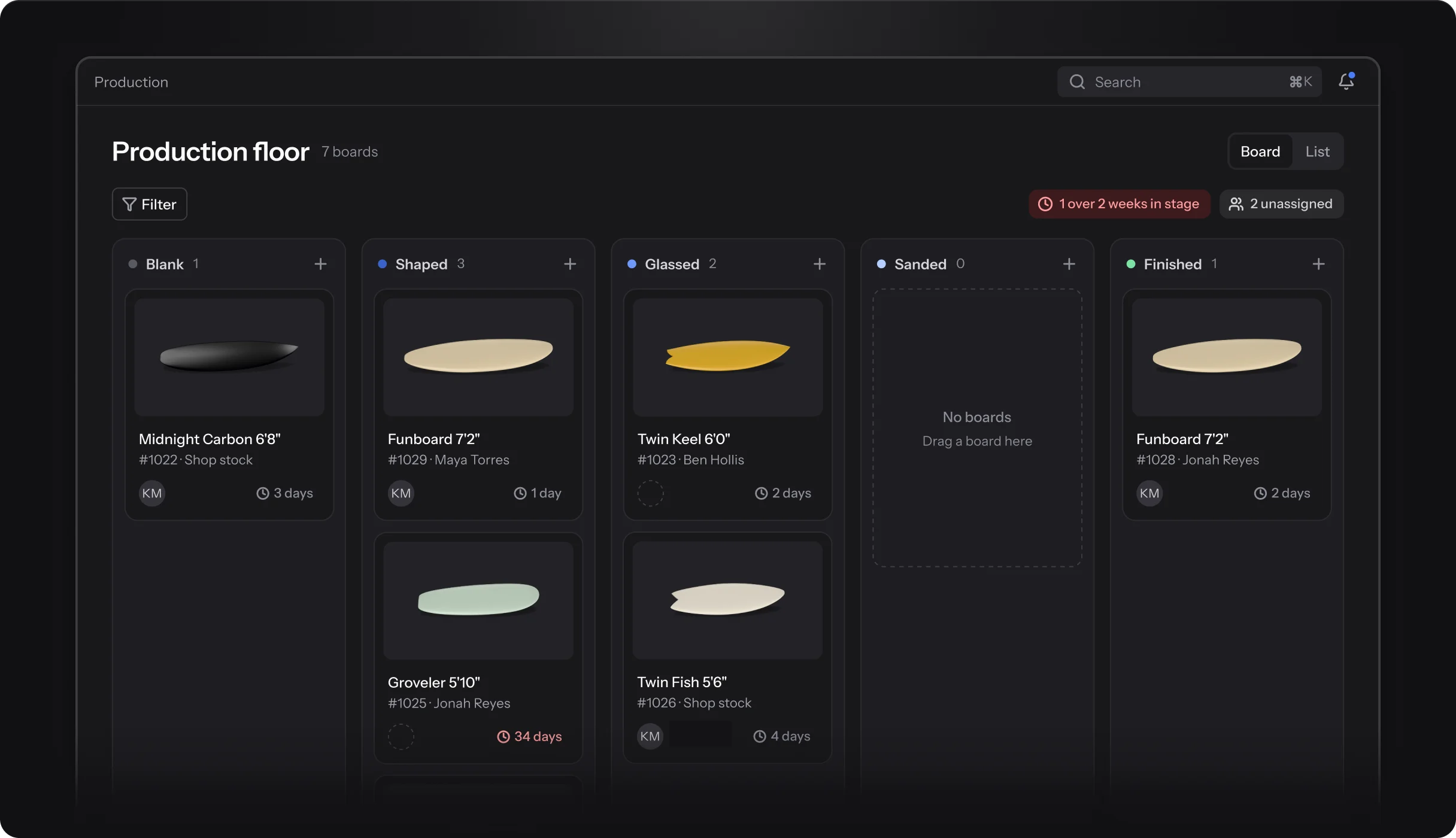
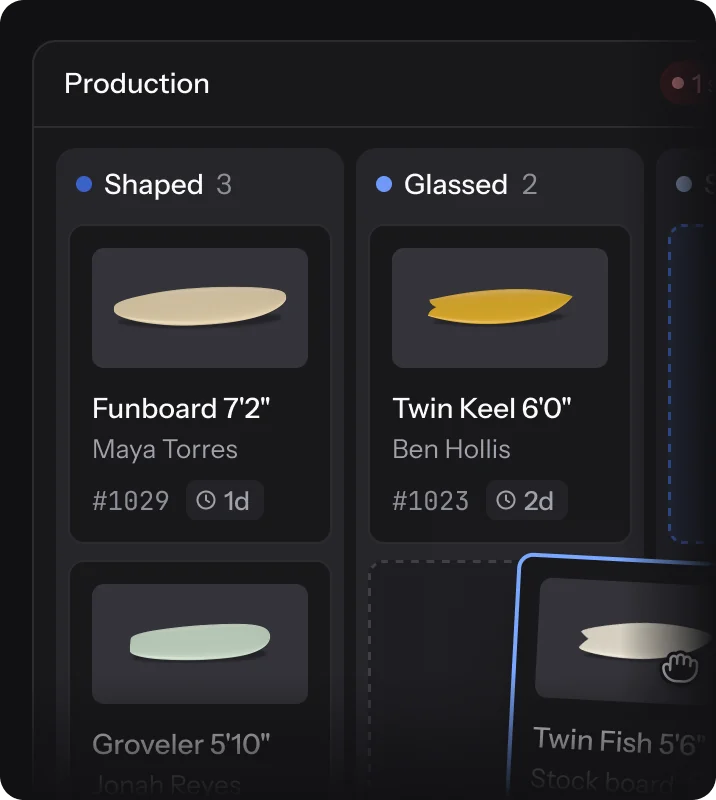
Follow each board from Blank to Finished on a floor the whole bay can see. Scan a board’s label to move it on, and spot what has sat too long.
Production tracking is on Pro and Business
On the floor
Built for the bay.
The floor, the scan and the rider’s status page all read the same order, so nobody updates a board twice.
Stages
Your stages, in your order.
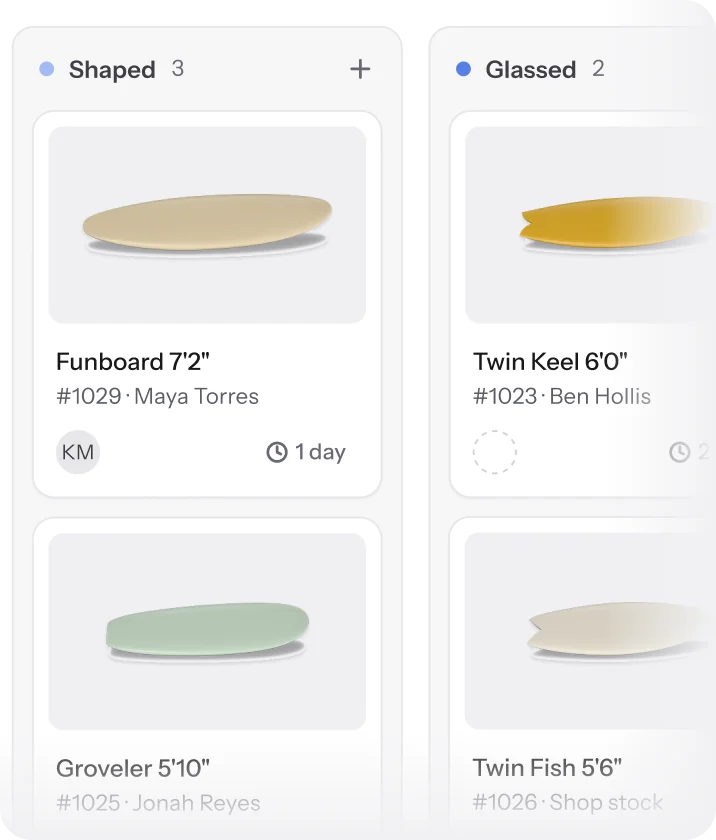
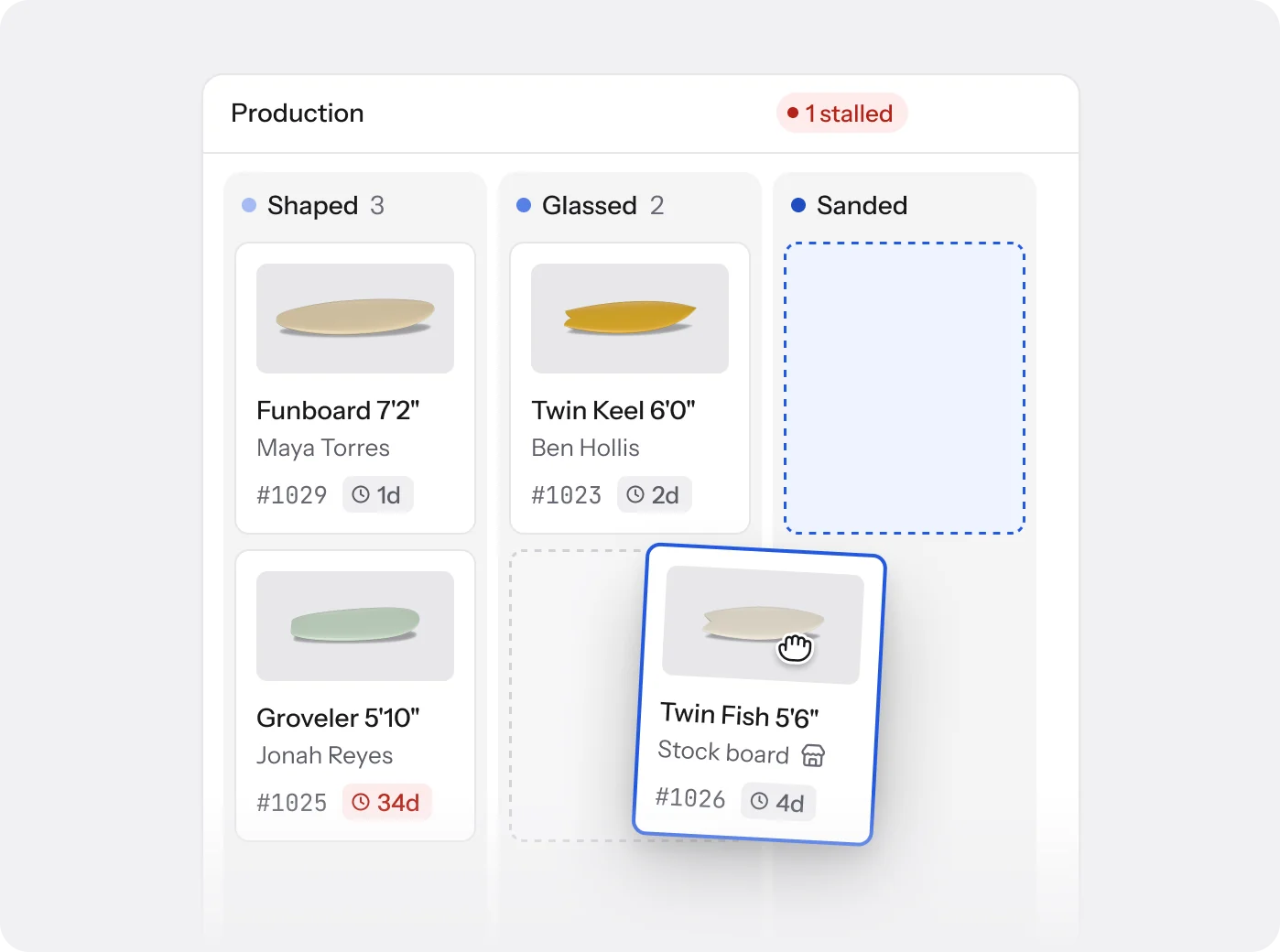
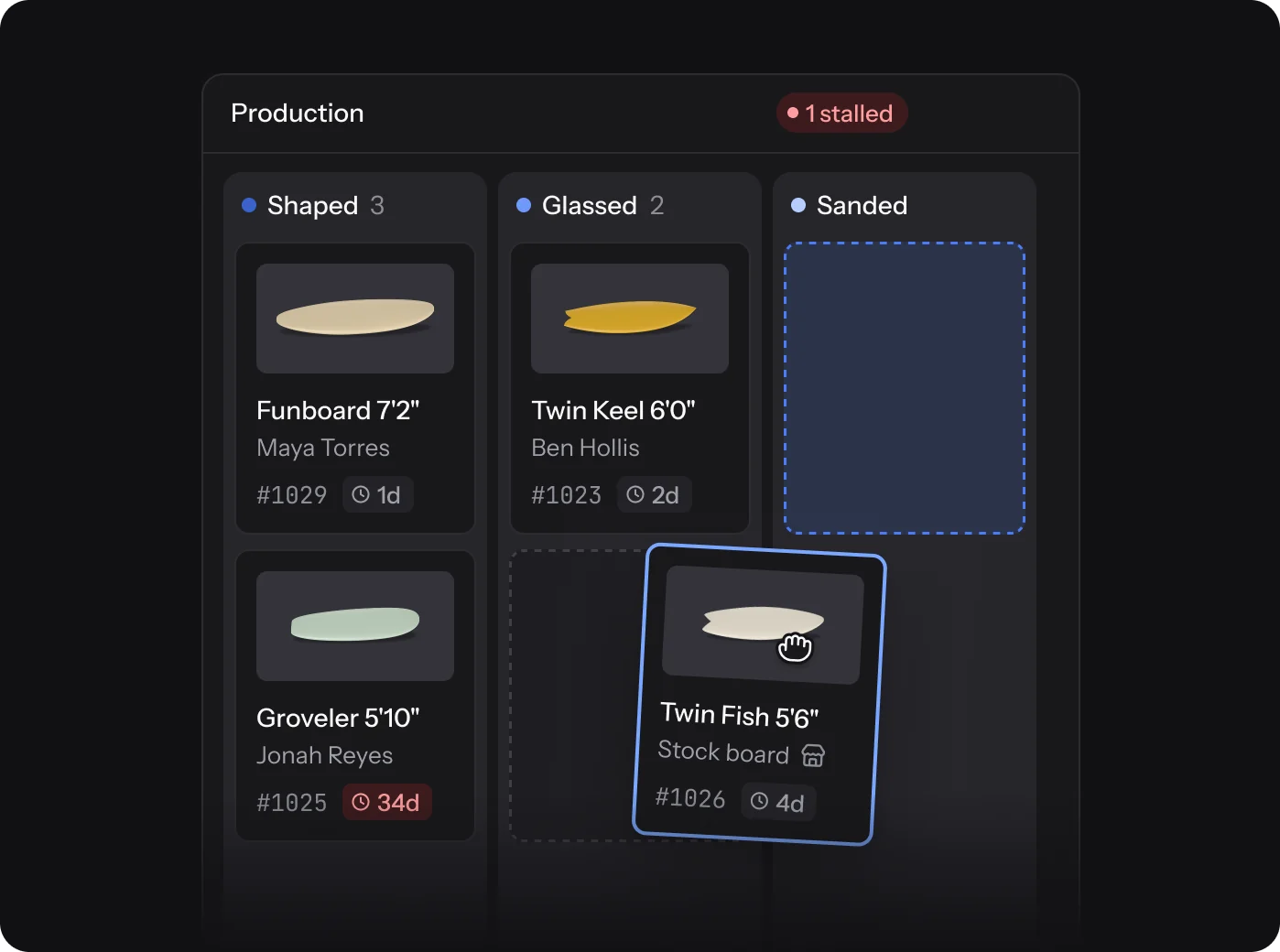
Start with Blank, Shaped, Glassed, Sanded and Finished, then rename, reorder or archive them to match your bay. Bodyboards get their own set.
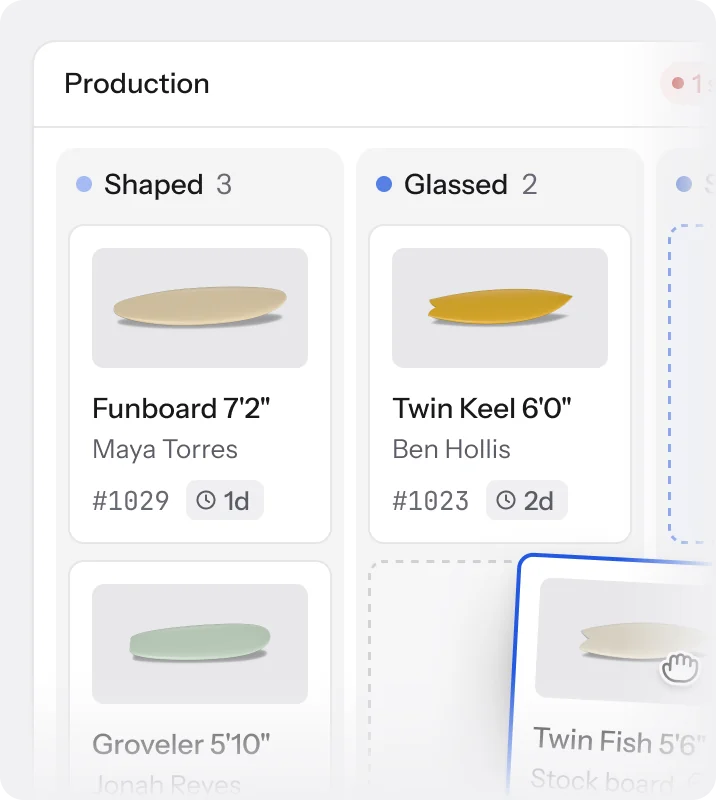
- Drag a board to the next column, or move a batch at once
- Undo a slip straight away
- Board or list view, filtered by stage, shaper or customer
Stalled boards
See what has sat too long.
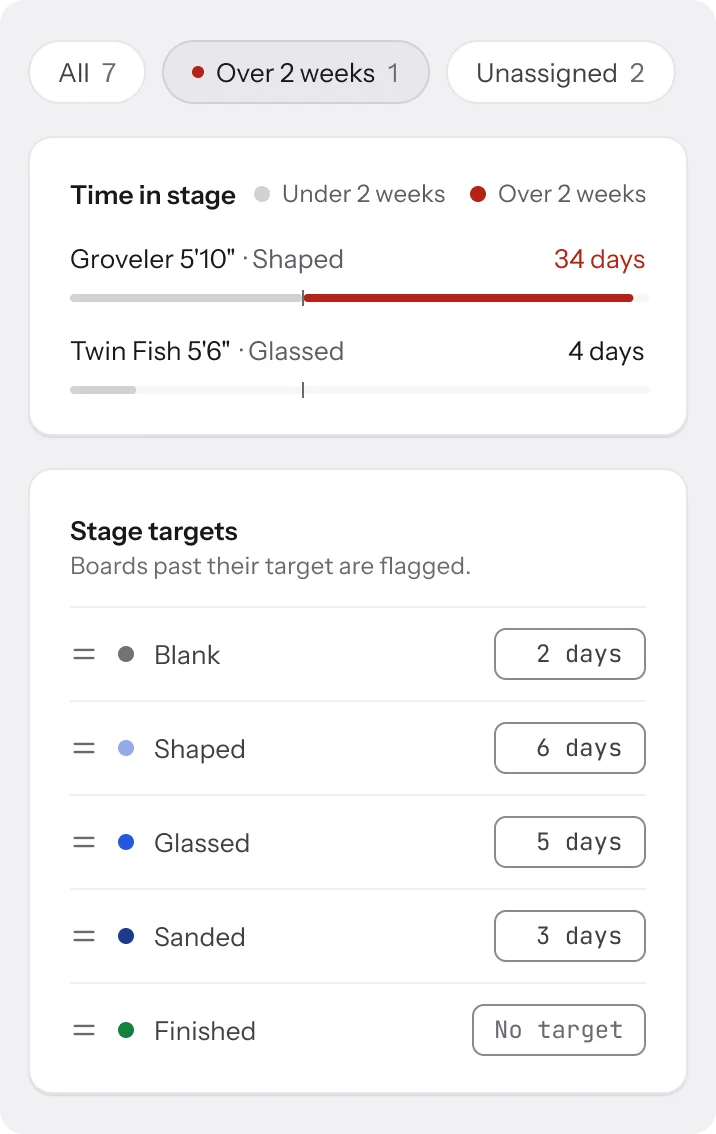
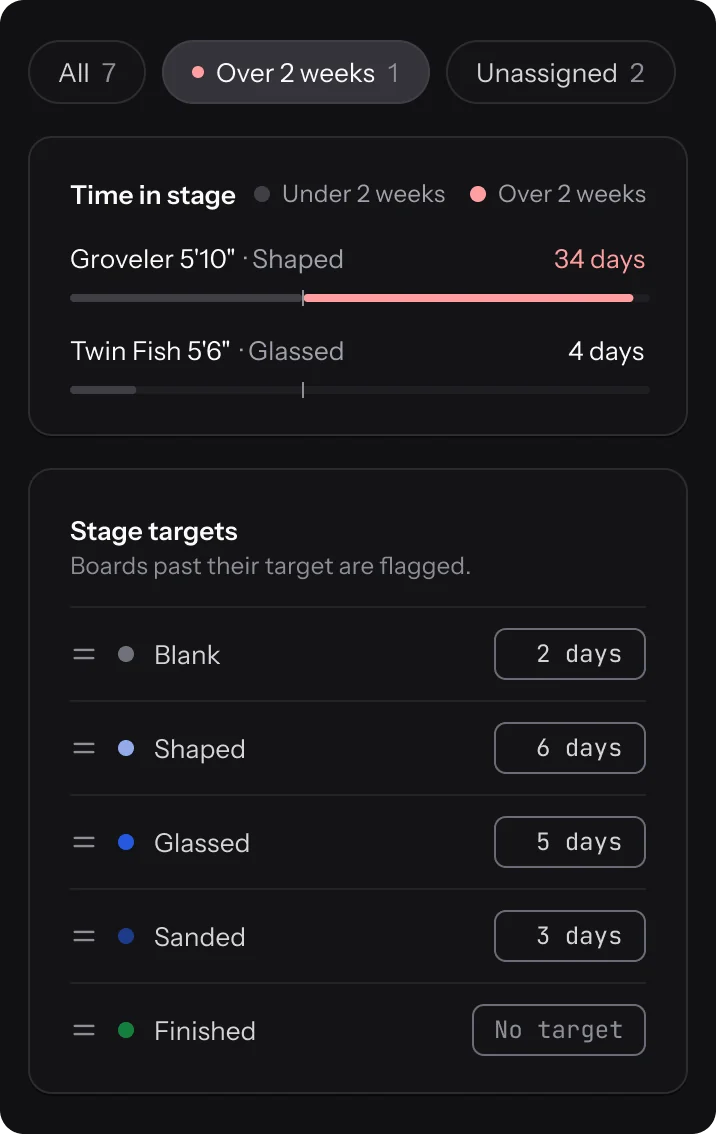
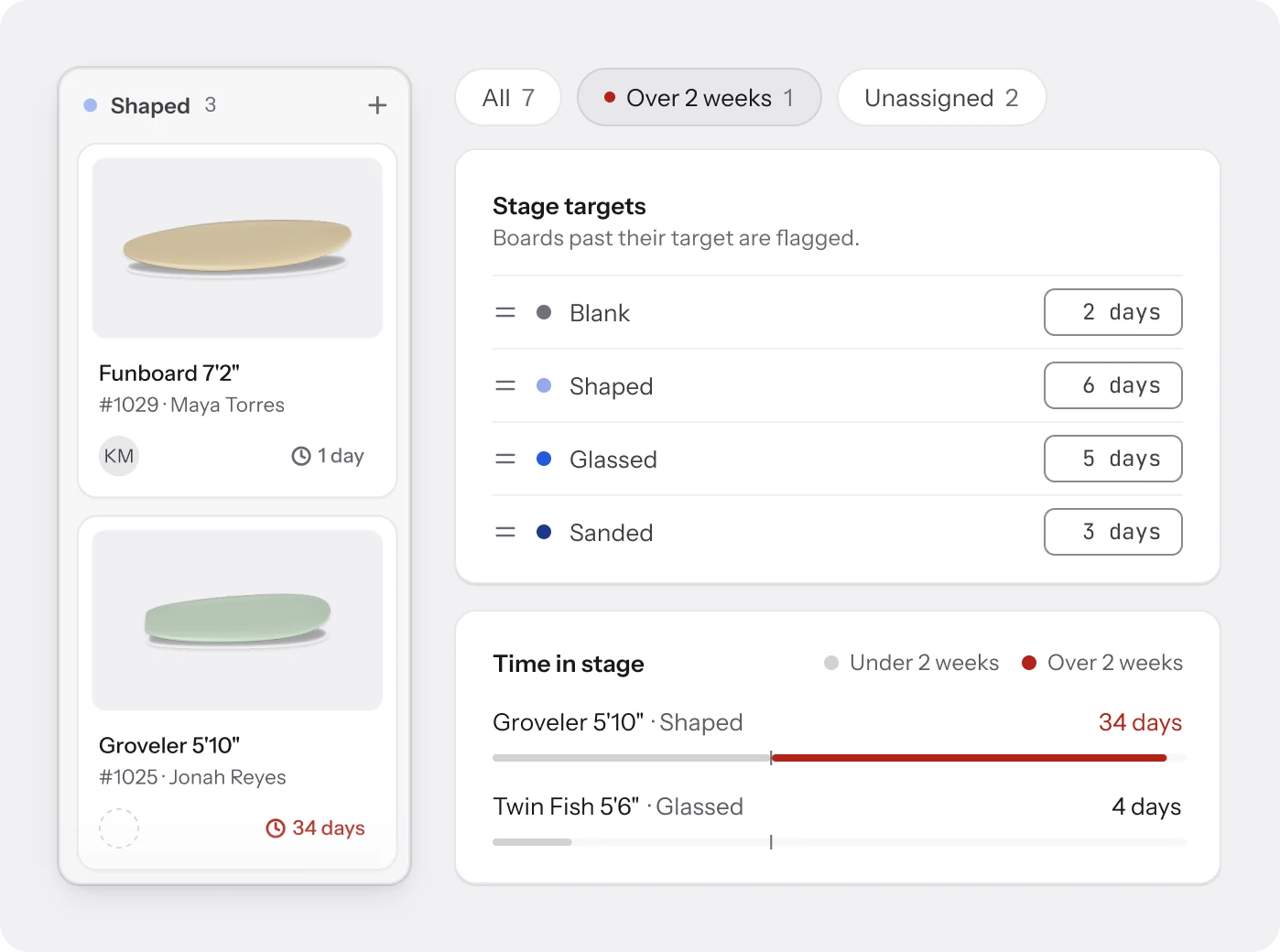
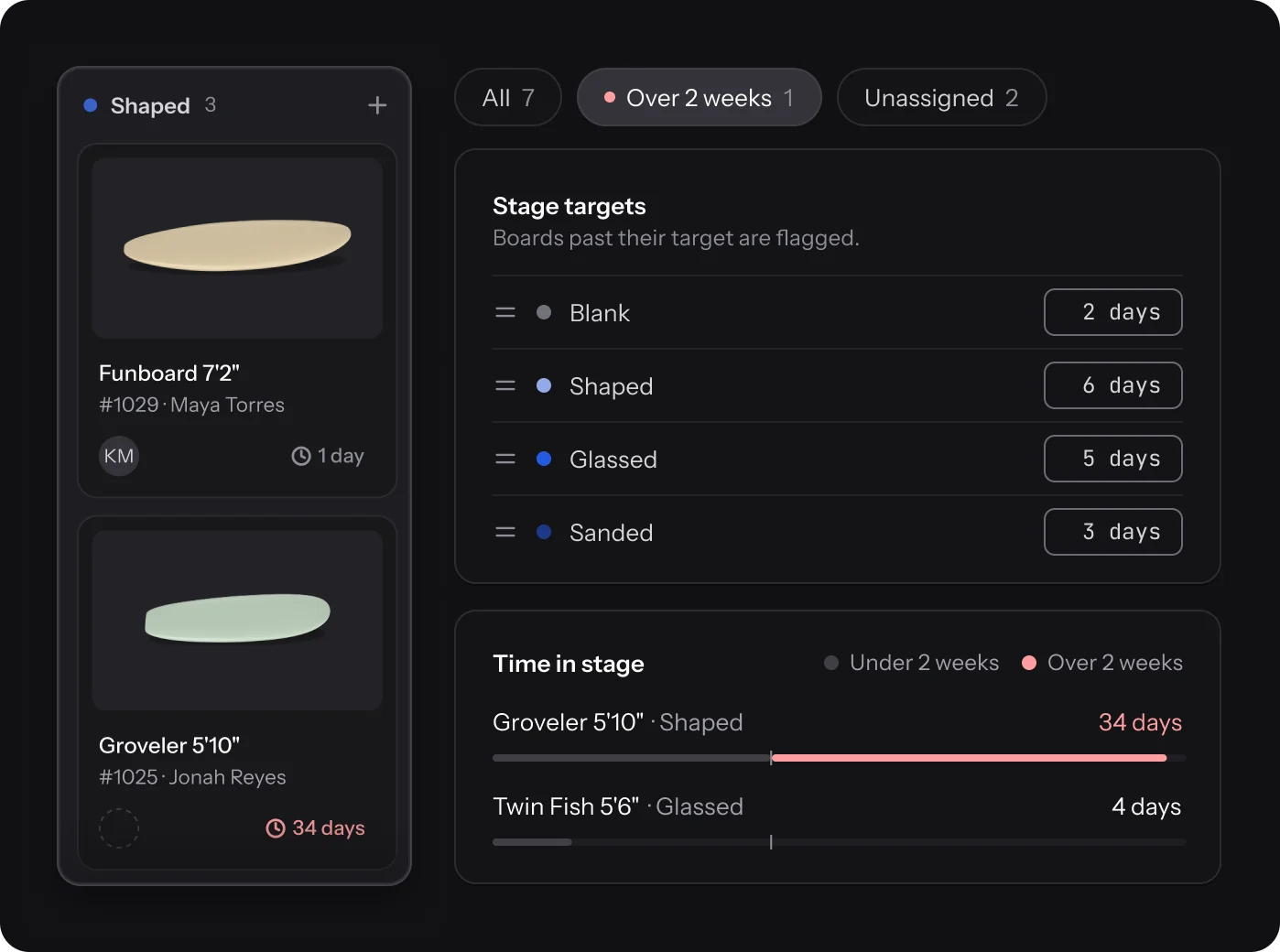
Give each stage a target number of days. Boards past it are flagged on the floor and on the order, so the slow ones surface before the rider asks.
- A target for each stage, set in Settings
- One-tap filters for Over 2 weeks and Unassigned
- Assign a shaper to any board
QR scan
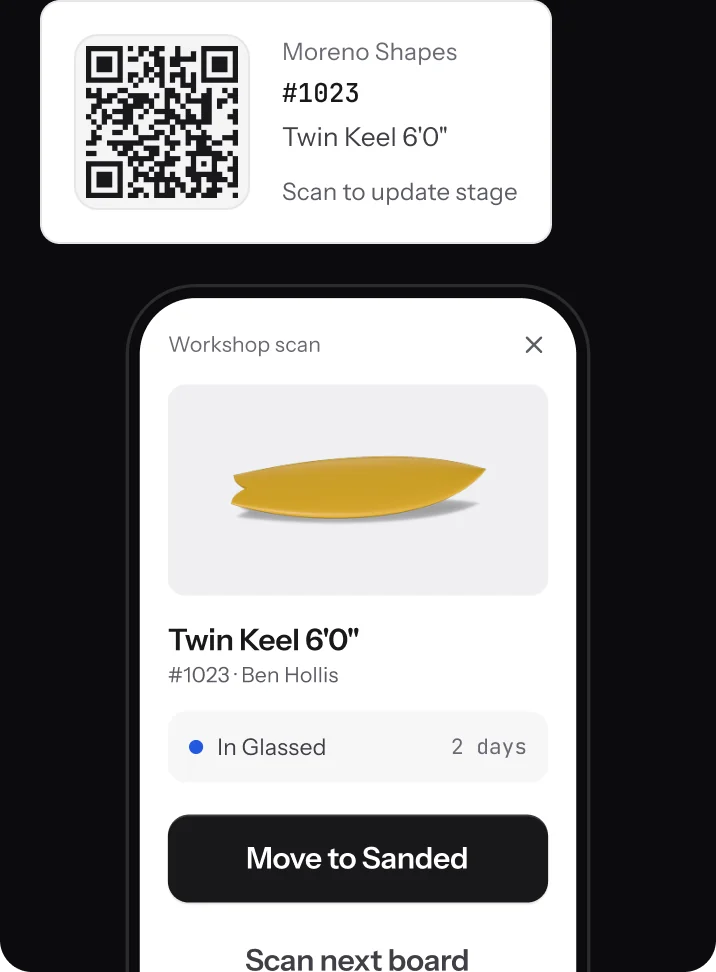
Scan the board, move it on.
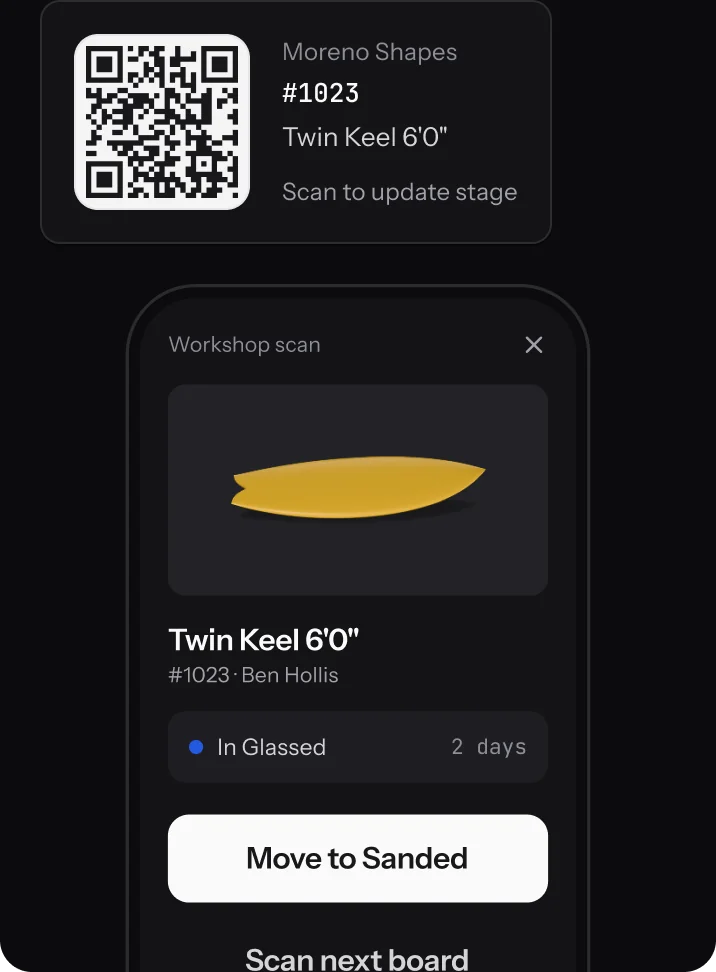
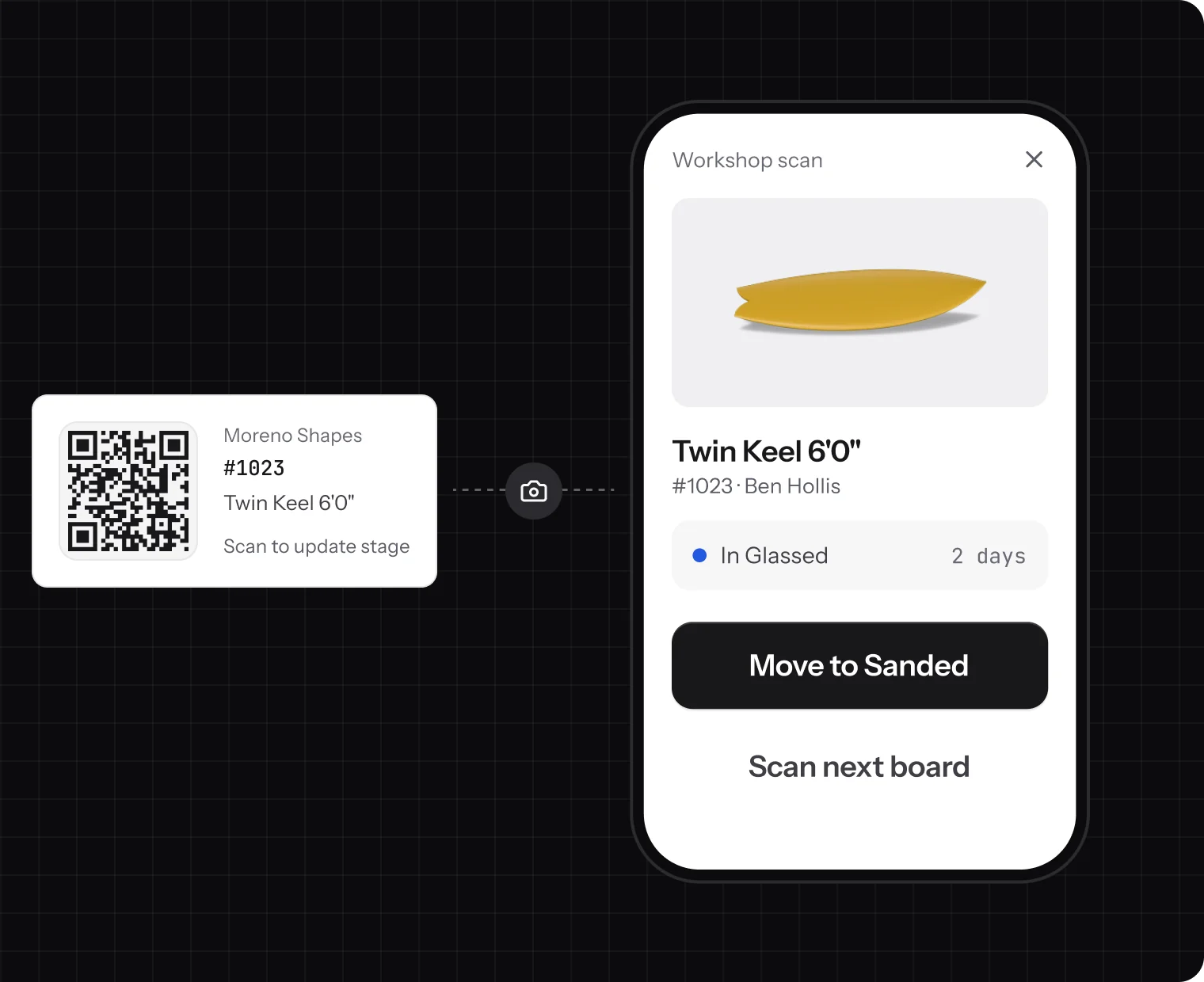
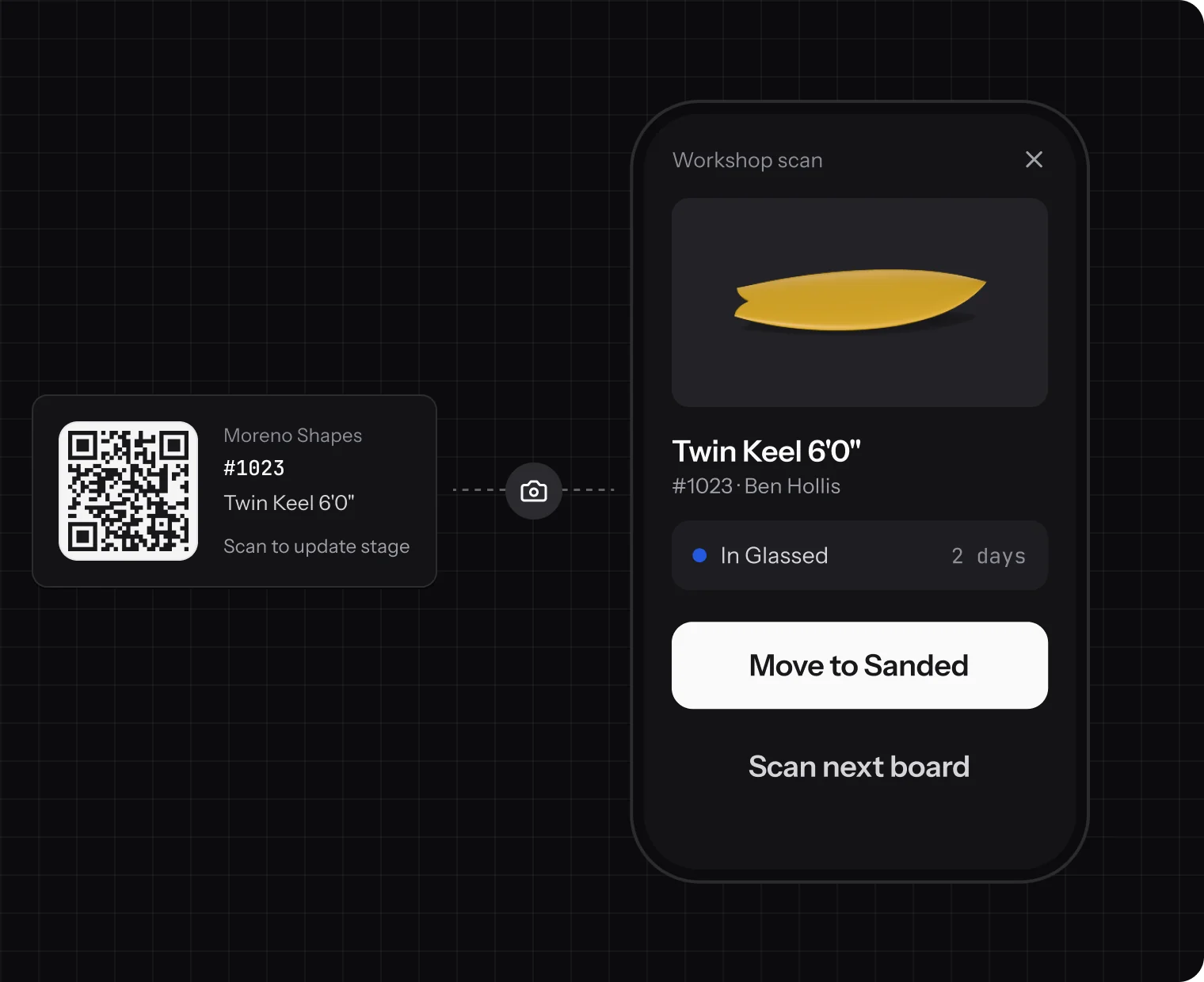
Print a QR label for each order. Anyone signed in to your team scans it with their phone camera and moves the board on.
Rider status
Riders see their board move.
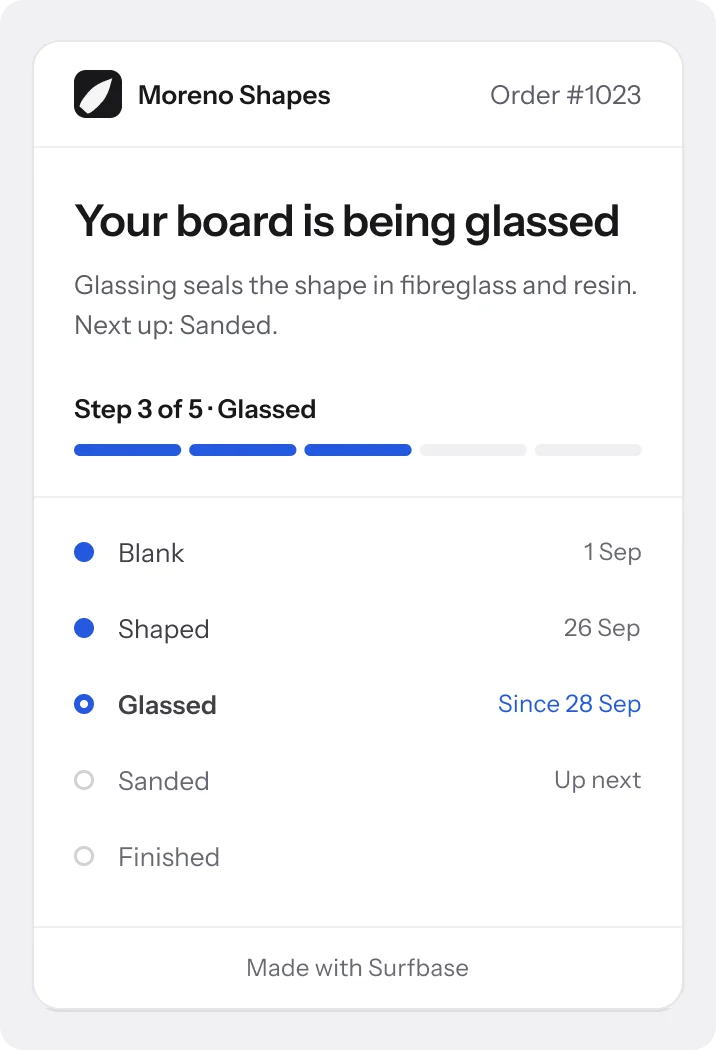
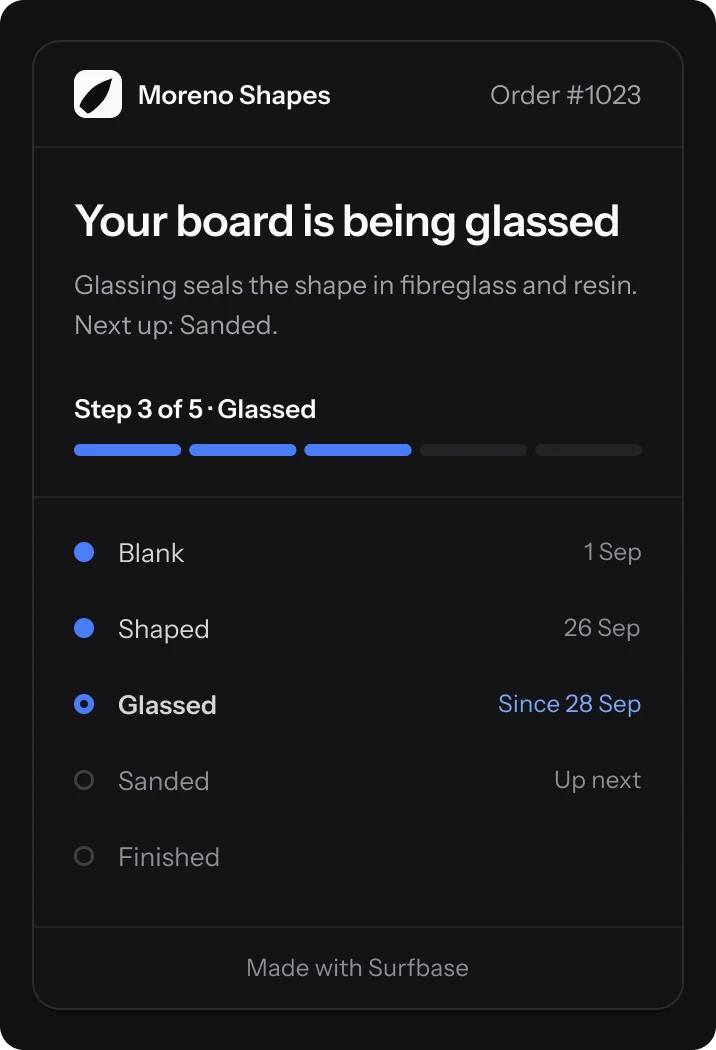
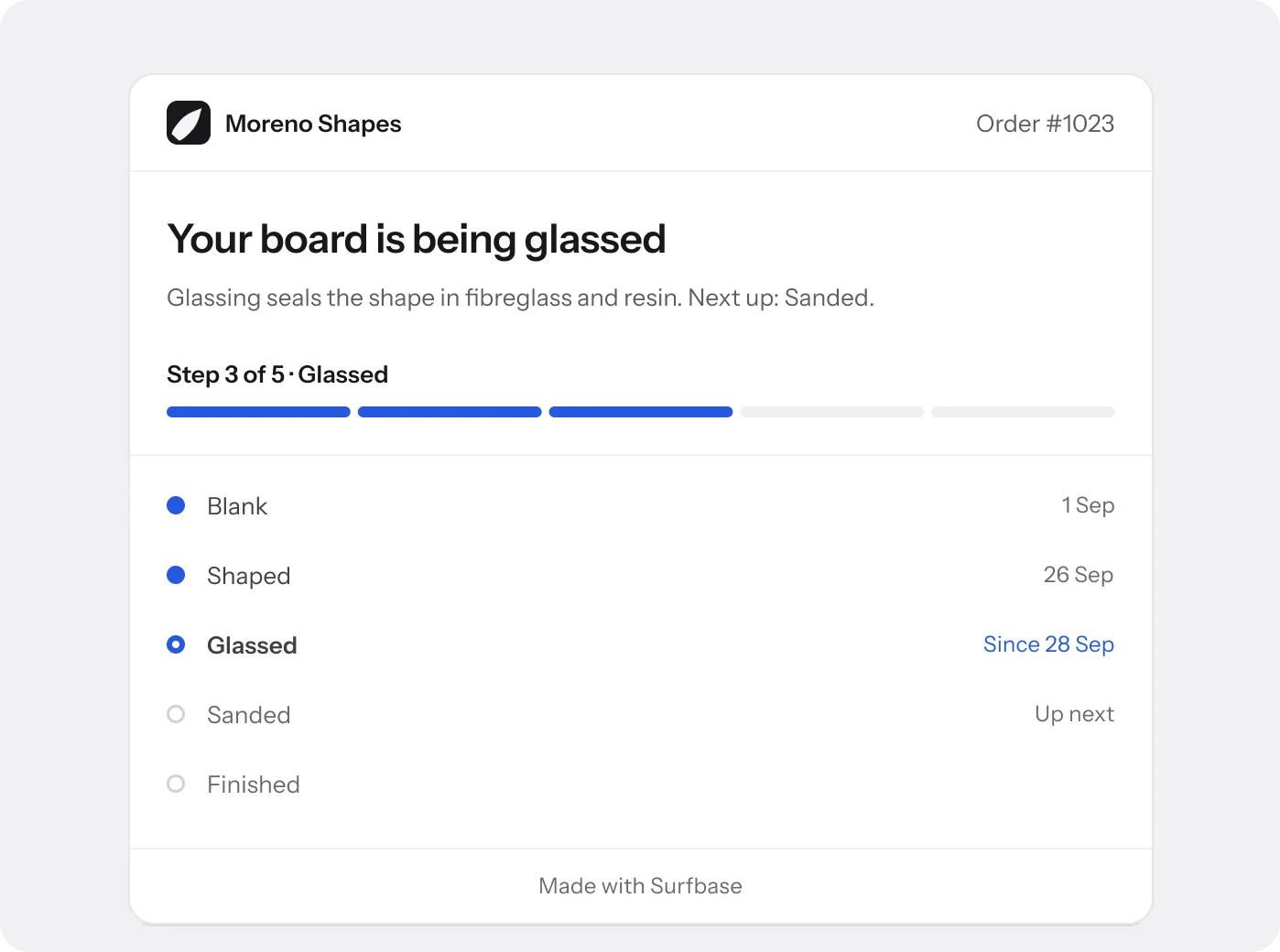
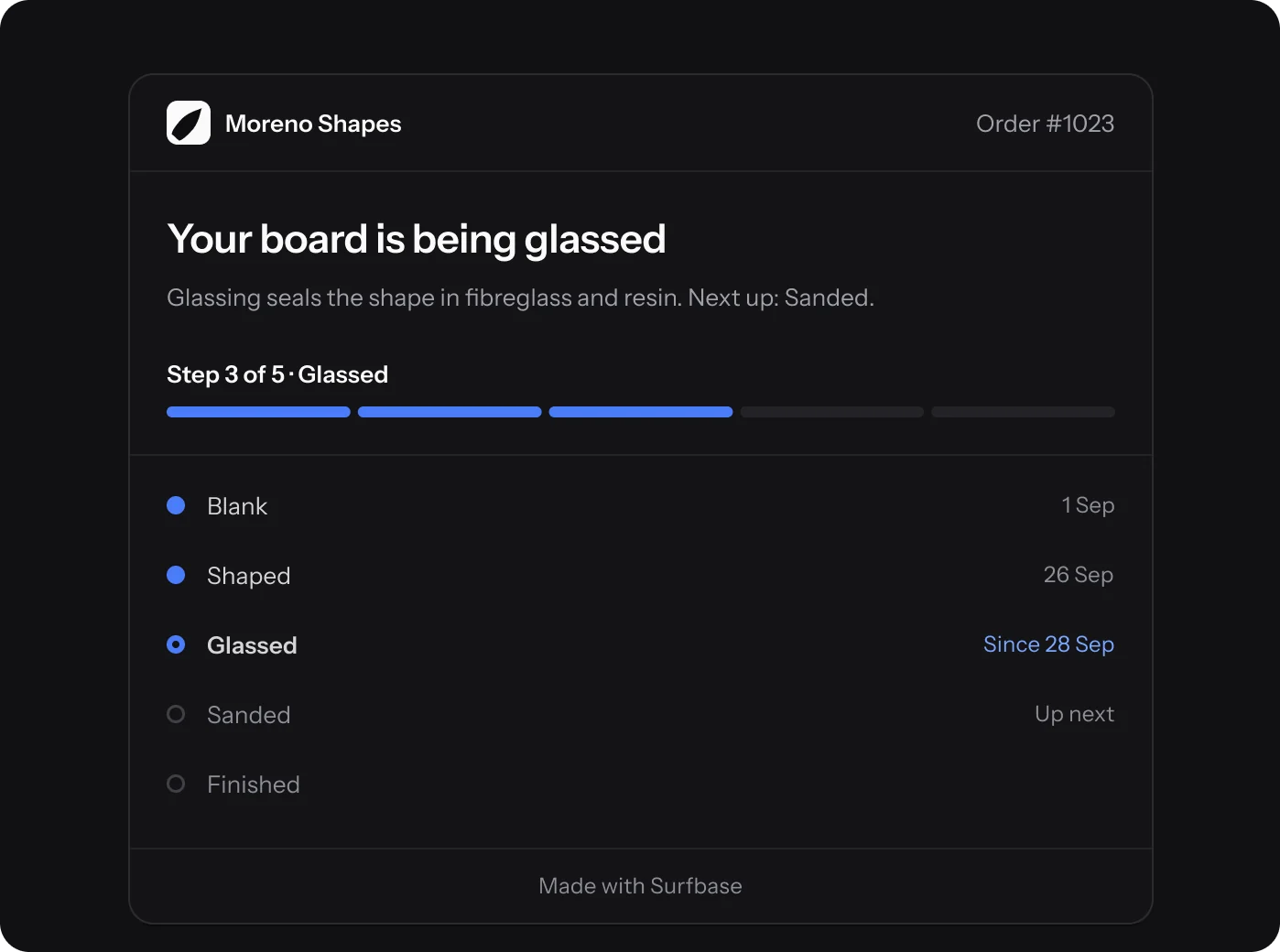
Each order can share a private status page. The rider sees which stage their board is in and when it got there, and nothing else.
- A private link per order, no account needed
- Never shows prices, payments or your notes
- Switch it off for the shop, or revoke one link
How it connects
Production reads the order.
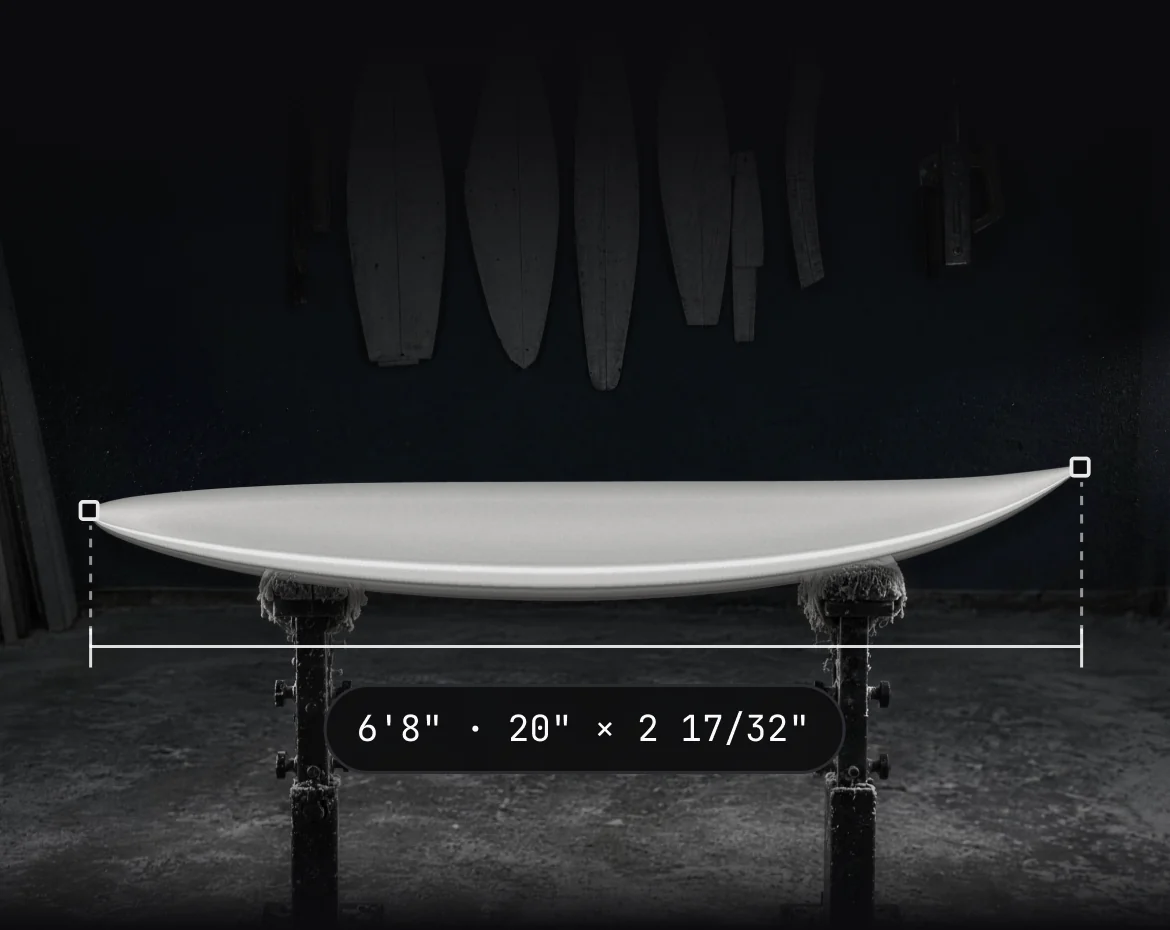
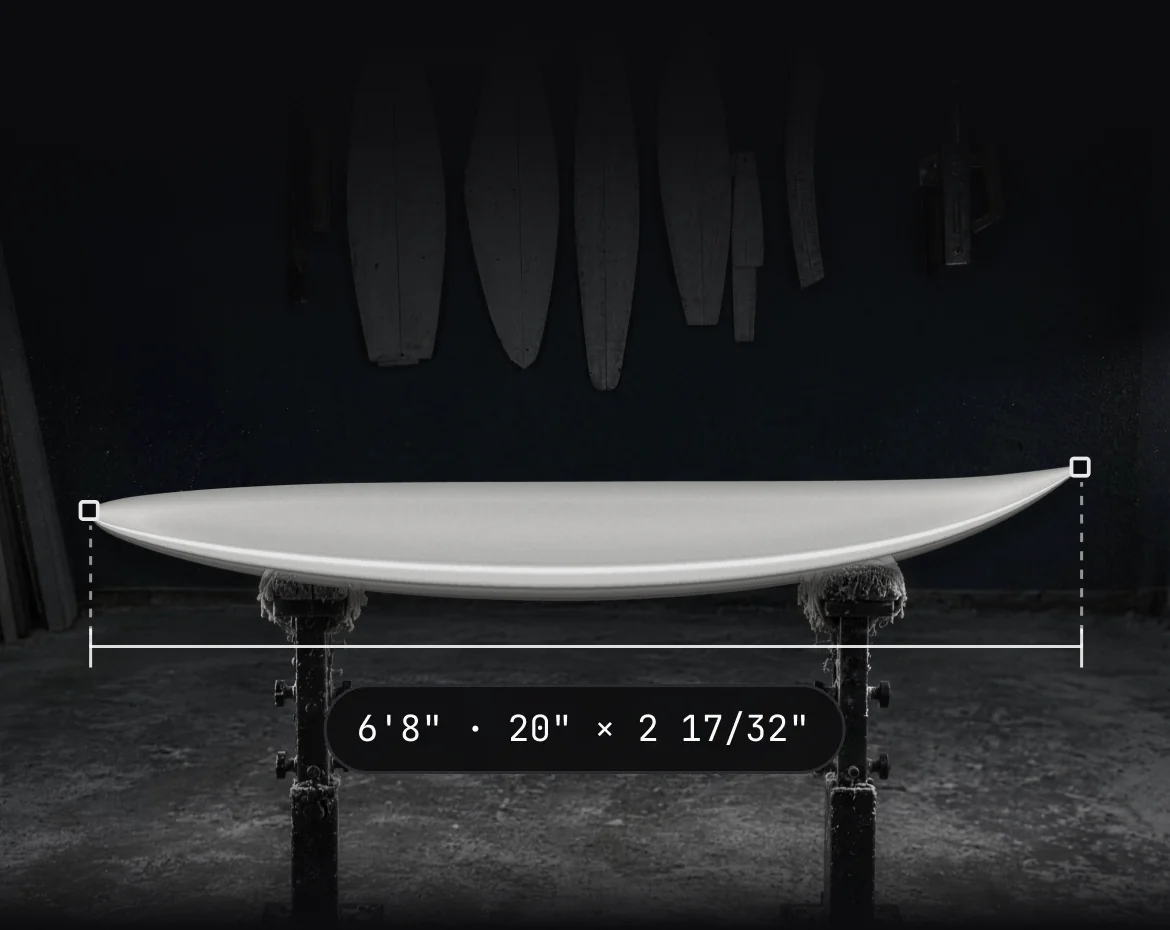
Every board on the floor is an order line, built from one design version.
- Design editor The board on the floor is the exact version on the order, with its spec sheet.
- Orders Moving a board updates its order, and the order shows how long it has sat.
- Customers Each card shows who the board is for, linked to their profile.
- Online store Finished stock boards can go straight onto your shop page.
FAQ
Questions about
production.
Can I change the stages?
Yes. Rename, reorder, archive or add stages in Settings. Surfboards start with Blank, Shaped, Glassed, Sanded and Finished.
When is a board flagged?
When it passes the target days you set for its stage. Anything over two weeks in one stage also shows in the Over 2 weeks filter.
Who can use the QR scan?
Anyone signed in to your team. The scan opens the board with one button to move it to the next stage; it never moves on its own.
What does the rider see?
Your shop’s name, the order reference and the stages with their dates. Never prices, payments, the design or notes.
Which plans include it?
Production tracking is on Pro and Business. Basic covers orders and invoicing without the floor.
Still have a question?
A person on the team will write back.
Put your floor in Surfbase.
Start free and move to Pro when the bay gets busy.